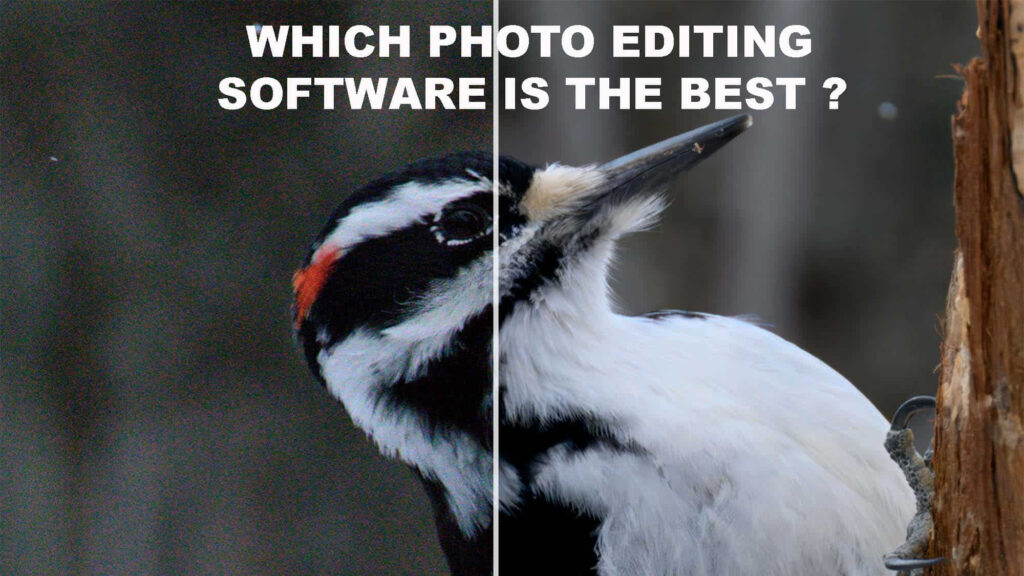
DxO PureRAW4 vs Topaz Photo AI 3
Best Image Editor: DxO PureRAW 4 vs. Topaz Labs Photo AI 3 Which image editing software is best? DxO PureRAW4 does a slightly better job with High ISO image rendering[…]
Read the post.

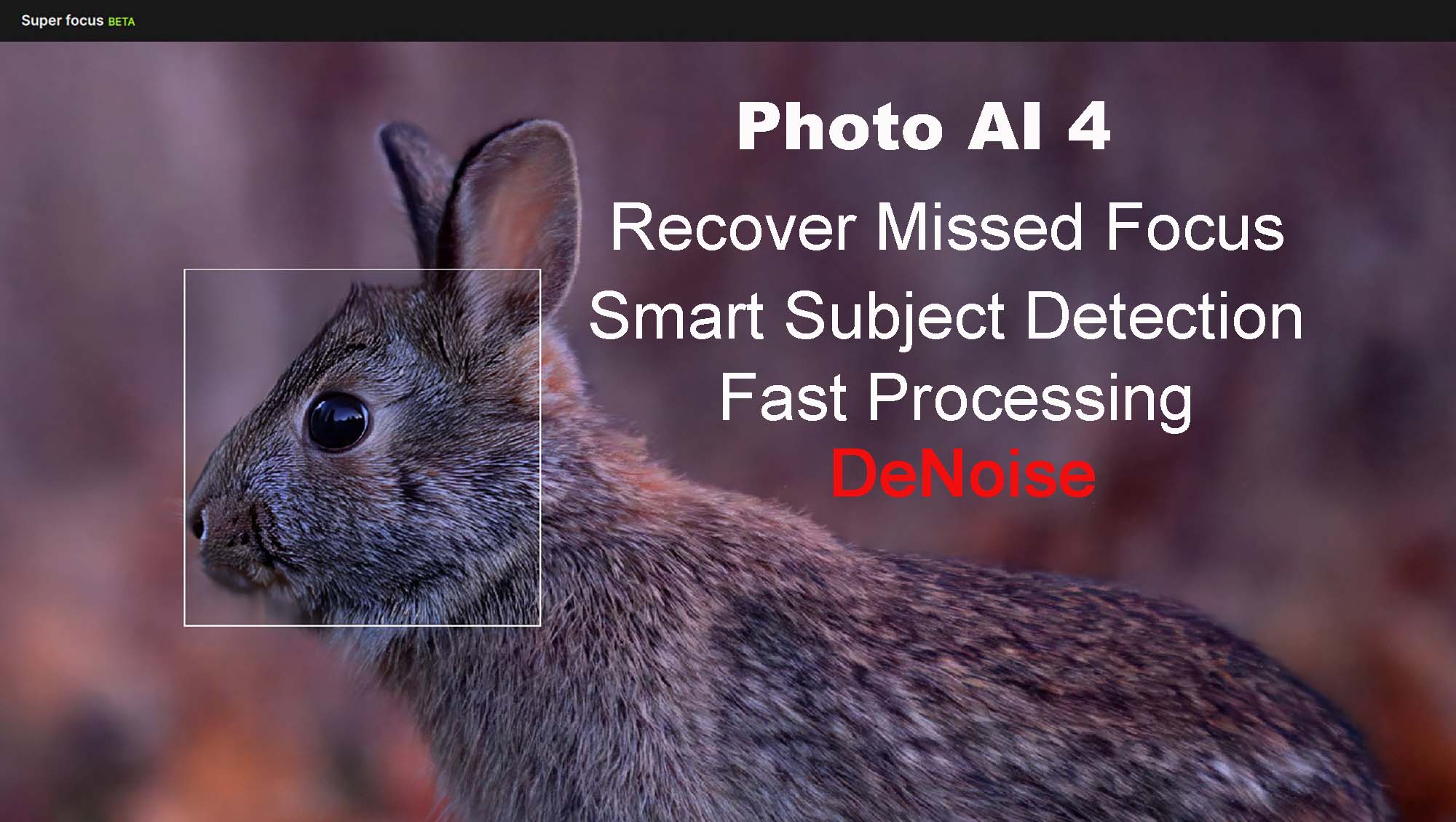
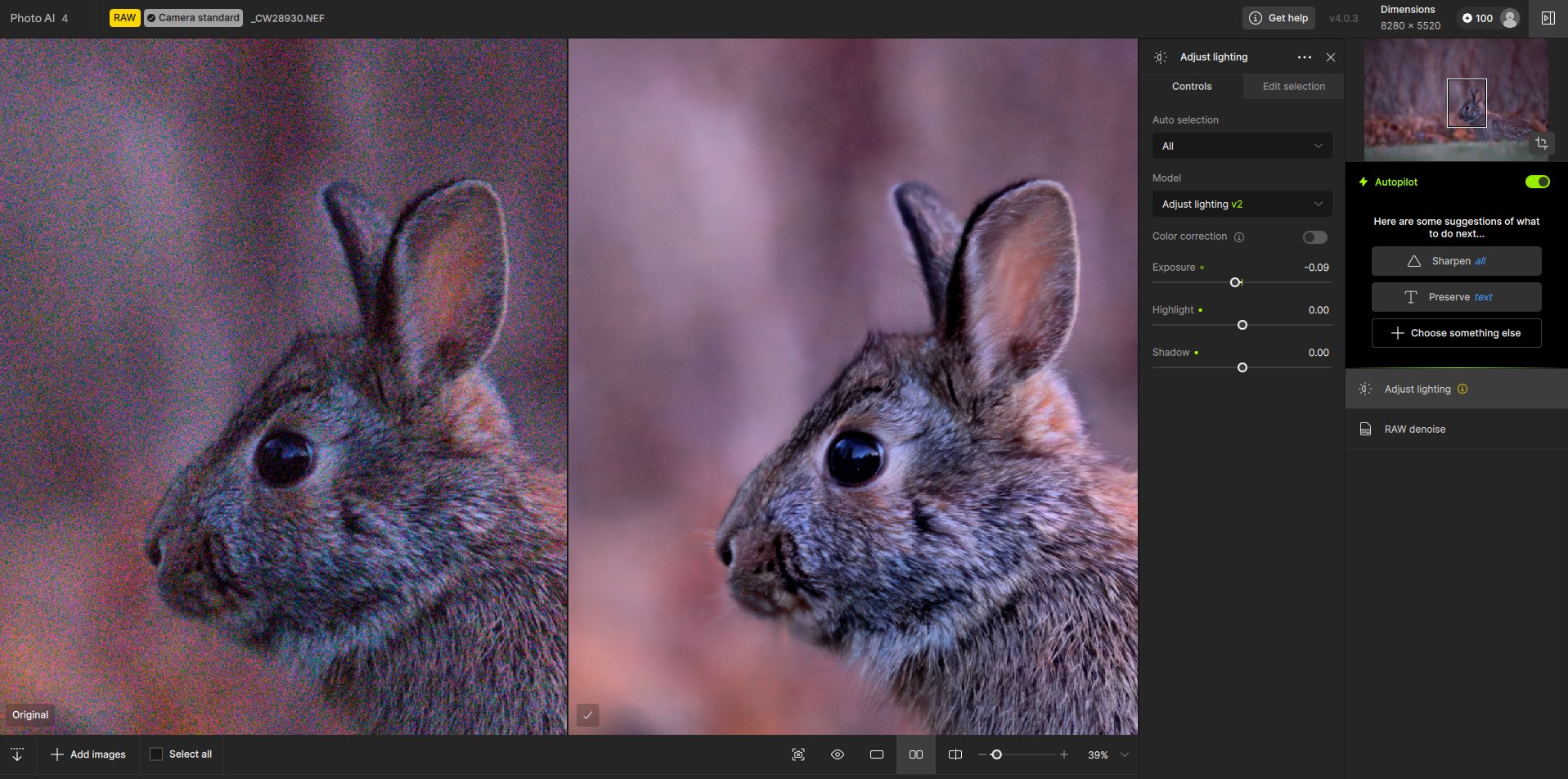
Topaz Photo AI 4 is an “all-in-one” image enhancer that denoises RAW files, corrects blur/missed focus, sharpens detail, upscales and balances lighting and color. Version 4 adds new/updated AI models and usability improvements aimed at faster, cleaner results—especially on problem files. Headliners include a Dust & Scratch model, Super Focus v2, and Face Recovery Gen2 (mostly for people, but the tech improvement transfers to wildlife).
Wildlife doesn’t pose, and it rarely waits. You get what you get—high ISO, missed focus, heat shimmer, and subject movement. Topaz Photo AI 4 is built to salvage and polish those files. I’m going to be blunt: if you regularly shoot birds at dawn or mammals at dusk, Photo AI 4 earns a spot in your workflow.
If you find articles like this one helpful, please consider using my affiliate link for Topaz Labs Photo AI 4 when you make a purchase. It provides a small commission to support my site at no additional cost to you.
To help you decide if Topaz Photo AI is going to meet your needs I would recommend you try before you buy. Topaz Labs offers a free 30-day trial of their software.
Topaz Photo AI 4 FREE 30-day trial
If you only ever shoot at base ISO with perfect focus, fine—you don’t “need” it. The rest of us do.
| Pros | Cons |
|---|---|
| Excels at high ISO noise reduction with sliders for micro adjustments | Super Focus v2 has a tendency to be too heavy handed |
| Does an excellent job upscaling images for print up to 16X | Super Focus is in Beta so I expect it will get more refined over time |
| Sharpening models provide excellent results with sliders for micro adjustments | |
| Color and lighting corrections are accurate | |
| One touch autopilot works well on most images out of the gate. Sliders allow for micro adjustments |
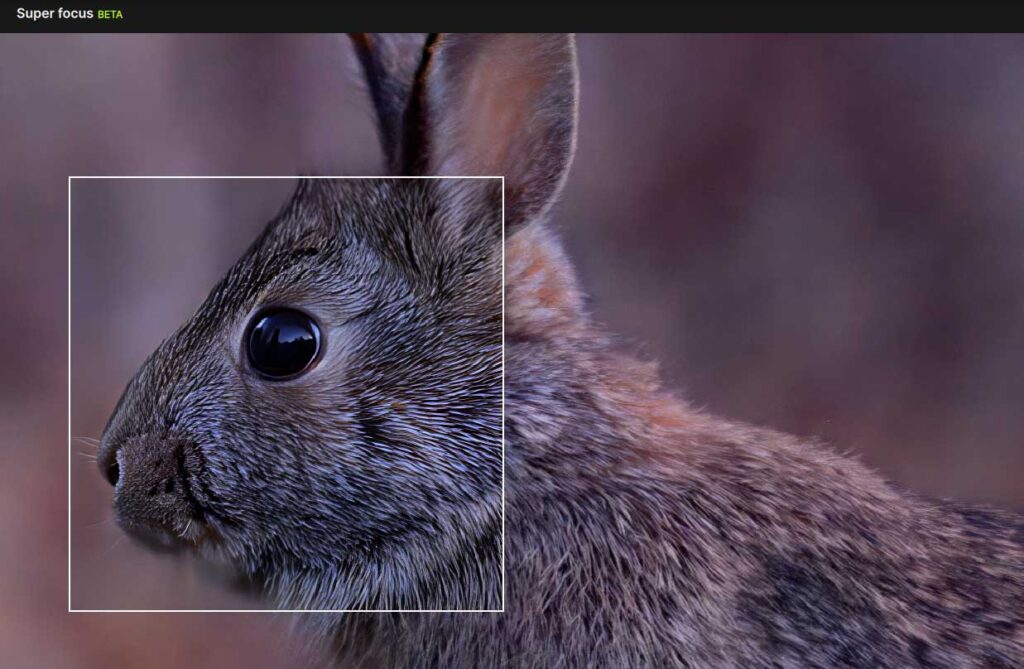
Below is an example of how Super Focus V2 rendered this image of a rabbit. With the slider zeroed out and the minimum setting of none selected there is no additional method of reducing the focus adjustments.
It definitely provides additional focus but as you can see from the image below, the selection under the white square is significantly over baked.
| Feature | Photo AI 3 | Photo AI 4 |
|---|---|---|
| RAW Denoise | ✅ | ✅ |
| Standard Sharpen | ✅ | ✅ |
| Super Focus v2 (enhanced de-blur) | ❌ | ✅ |
| Dust & Scratch AI + Healing | ❌ | ✅ |
| Face Recovery (v1 → Gen2) | ✅ (Gen1) | ✅ (Gen2) |
| Autopilot (revamped UI & intelligent selection) | ✅ (basic) | ✅ (improved) |
| Adjust Lighting / Balance Color | ✅ | ✅ |
| Preserve Text | ✅ | ✅ |
| Remove Objects / Context-aware heal | ✅ | ✅ |
| Upscale up to 16× | ✅ | ✅ |
| Optional Cloud Processing Toggle | ❌ | ✅ |
Notes: Super Focus v2, Dust & Scratch, the Autopilot/UI overhaul, and the cloud toggle are the practical differentiators for photographers moving from version 3→4.
This is the no-nonsense, keeper-file flow that works for me.
Yes—if you care about keepers. Photo AI 4 doesn’t replace good fieldcraft, but it rescues borderline files and elevates already-solid work with less fuss than a plug-in stack. The RAW Denoise, Sharpening and Upscale combo is lethal on soft, high-ISO wildlife frames. The Autopilot and simplified controls speed up the editing process especially on batches.
For serious wildlife photographers, Photo AI 4 is a must try addition to your workflow.
Best Image Editor: DxO PureRAW 4 vs. Topaz Labs Photo AI 3 Which image editing software is best? DxO PureRAW4 does a slightly better job with High ISO image rendering[…]
Read the post.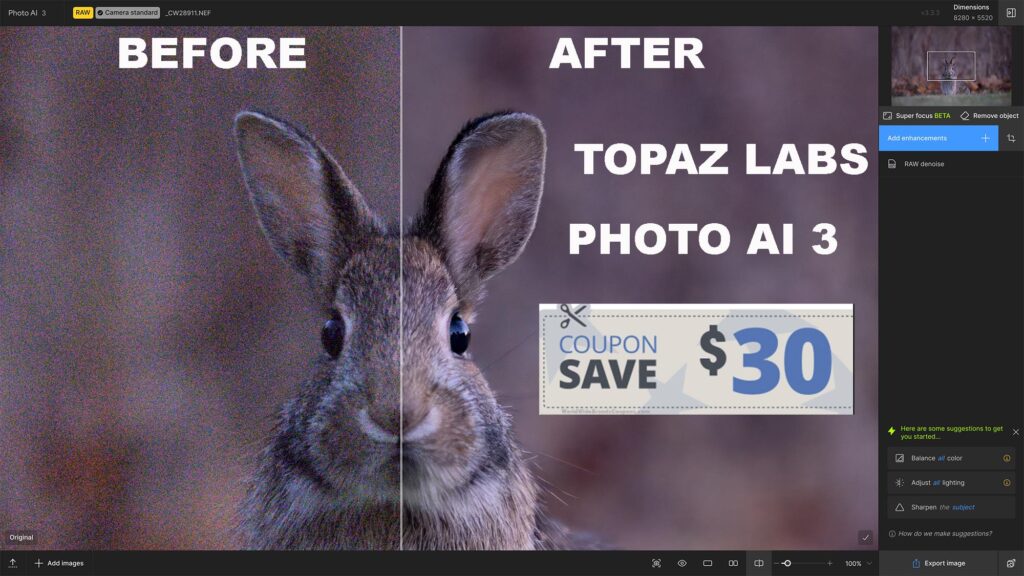
What is the best image enhancer software? Topaz Labs Photo AI 3 is an advanced photo enhancement software that utilizes artificial intelligence (AI) to automate image optimization processes like noise[…]
Read the post.